Deploy MySQL using GKE Autopilot
 admin
admin
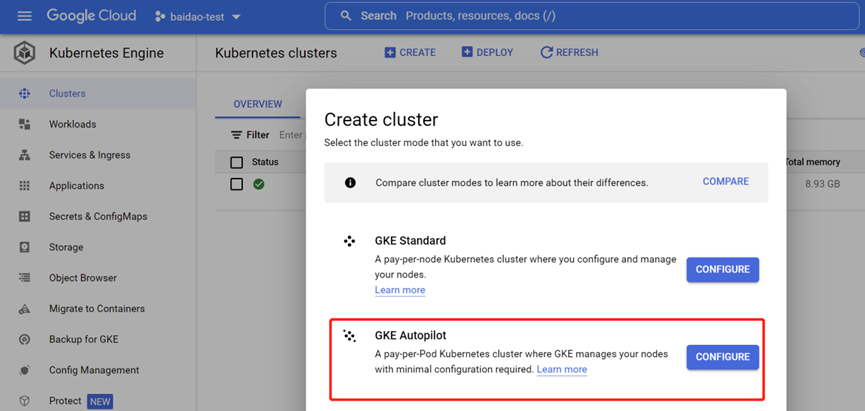
一、Log in to the GCP platform, click on Kubernetes Engine, and select to create a GKE Autopilot cluster (a Kubernetes cluster that charges by Pod).
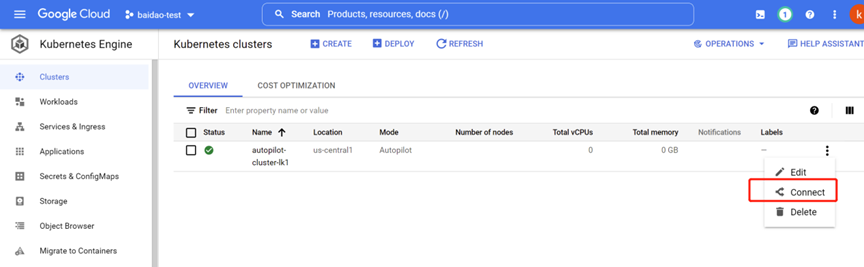
二、After creation, you can click Connect to enter the Cloud Shell console.
三、Before creation, a Secret needs to be created to store the username and password of the database. The values in the Secret are encrypted using the base64 method. Therefore, the MYSQL_ROOT_PASSWORD here should be encrypted using the base64 method with the actual password.
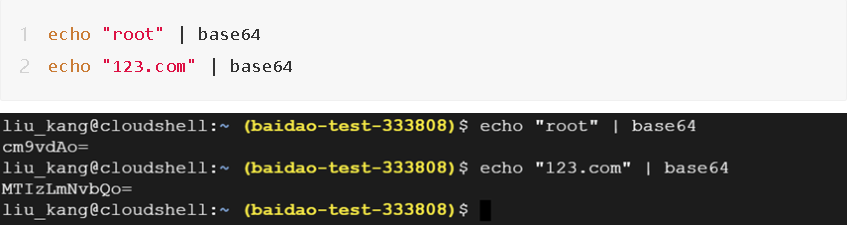
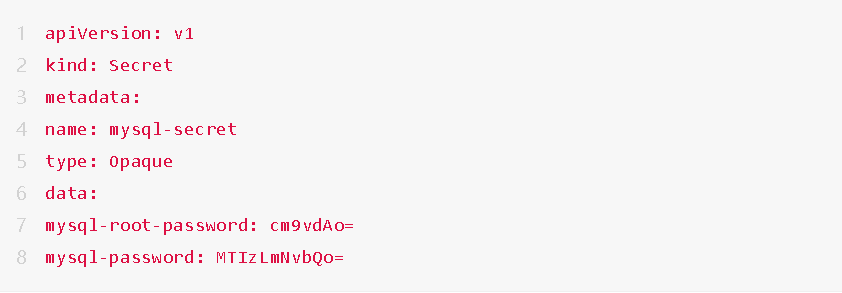
1)编写一个mysql-secret.yaml文件,文件内容如下:
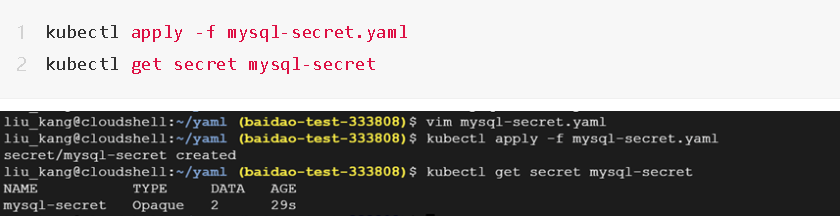
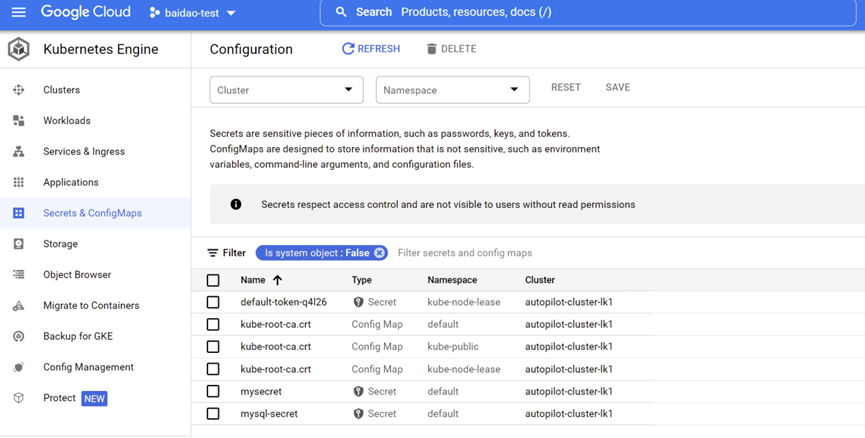
2)SecretsThen run it using the following command. After running, you can also see the newly created Secrets in Secrets&ConfigMaps on the page.
四、Create PV and PVC
1)Create a StorageClass
Note: Before creating a PVC, you can create a StorageClass, and then configure the volumeBindingMode field to Immediate. In this way, when creating a PersistentVolumeClaim, Kubernetes will automatically provision a PV for you, eliminating the need to create a PV separately.
StorageClassWrite a pd-example-class.yaml file with the following content, and then run the kubectl get sc command to view the created StorageClass.
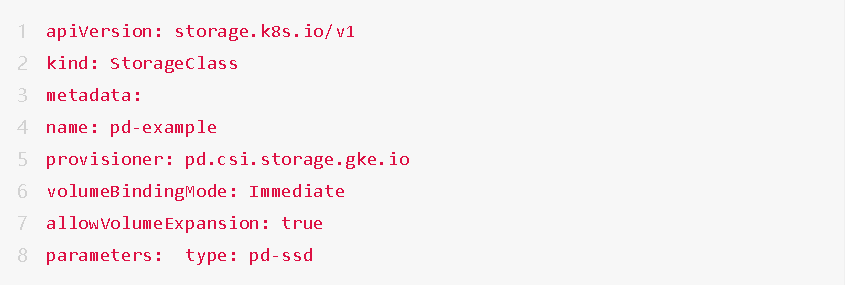

2) Create a PVC
Write a pvc-example.yaml file with the following content, and then run the command kubectl apply -f pvc-example.yaml to create the PVC.
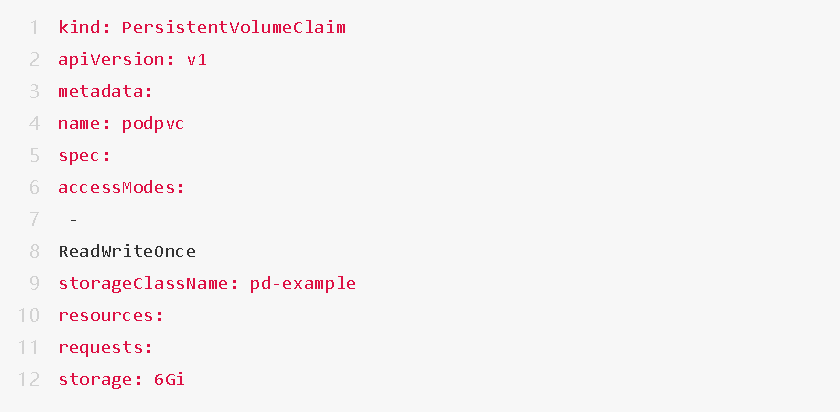

五.Deploy MySQL
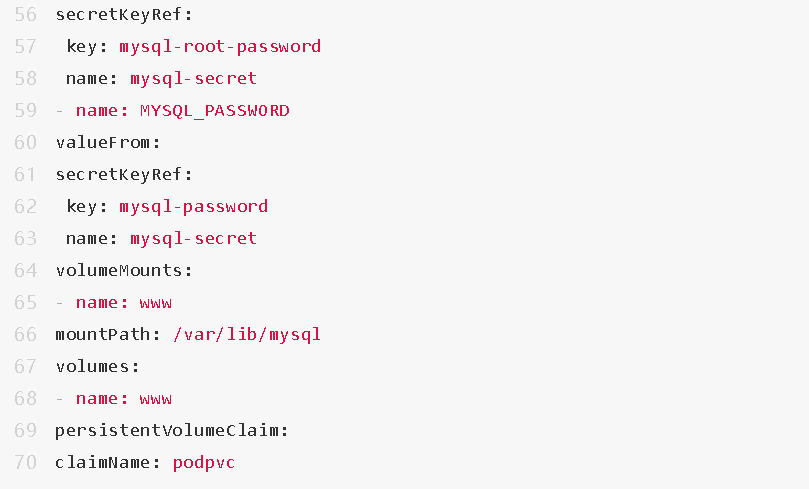
1)Write the mysql.yaml file, then run kubectl apply -f mysql.yaml, kubectl get pod, and kubectl get StatefulSet to view the execution results.
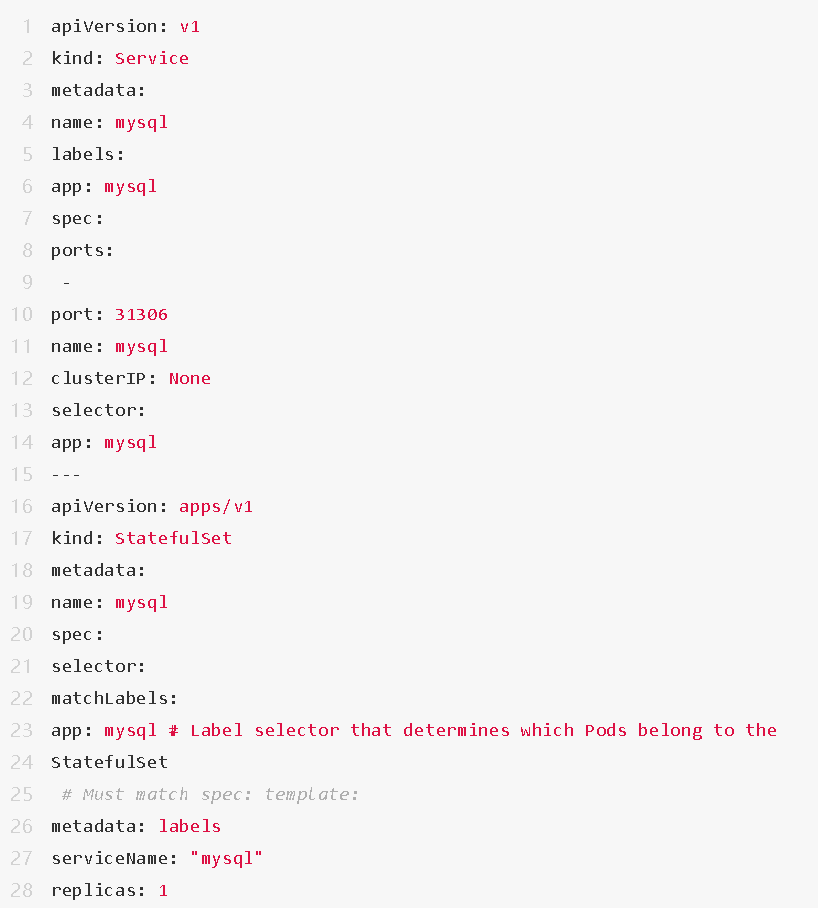
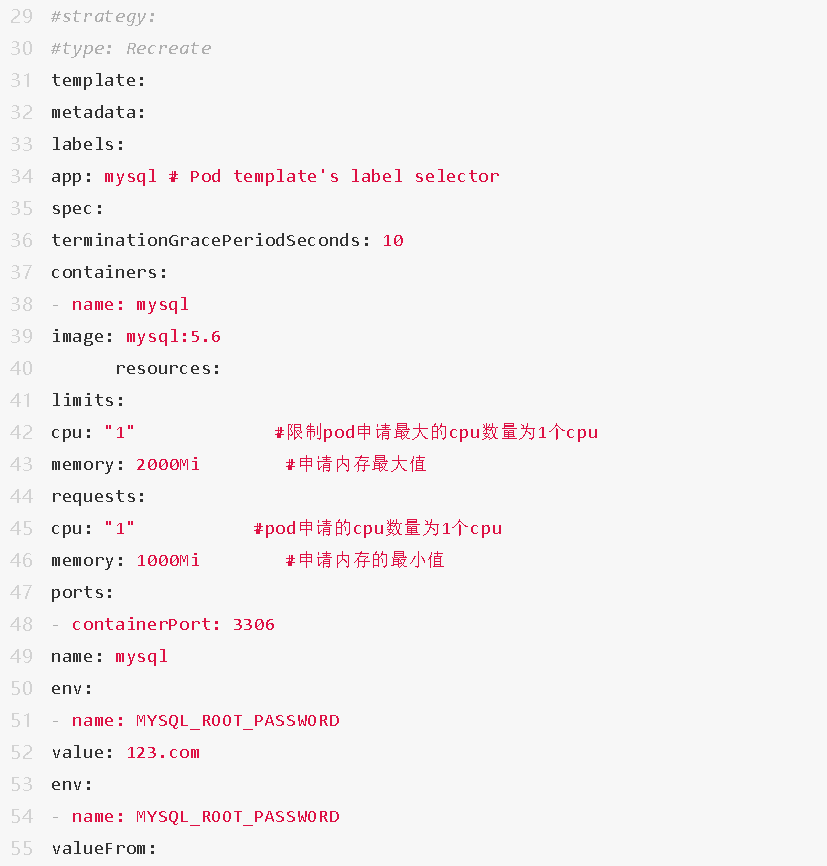

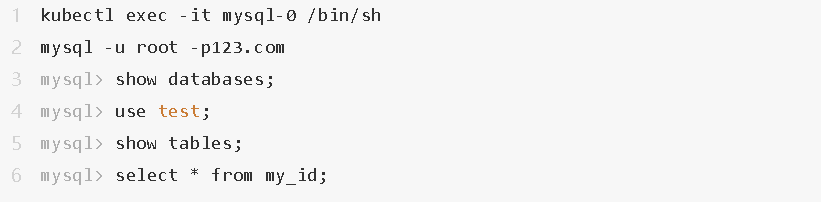
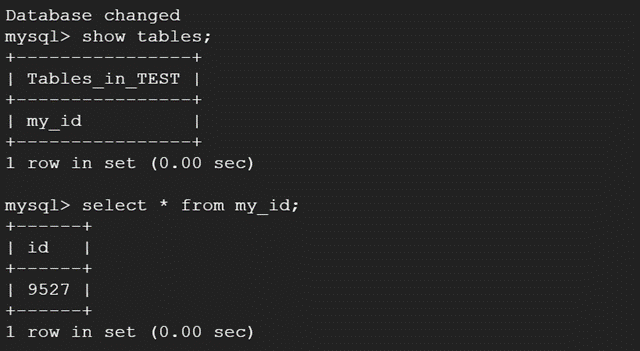
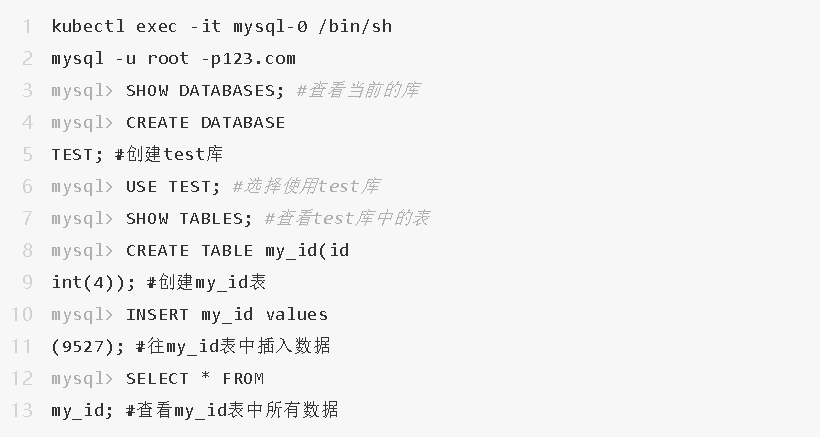
2)Add data in the MySQL database

3)Simulate MySQL service failure
The k8s cluster will generate a new Pod. Verify whether there is previous data in this Pod. First, check which node the Pod running the MySQL service is on, and then suspend that node. We know that k8s will definitely regenerate a Pod on another node.

4)After a new Pod is created, also enter the Pod to verify whether the data exists.