
Create your first GKE cluster
 admin
admin
【Introduction to GKE】
GKE is a K8S cluster management platform launched by Google. Currently, two management modes have been introduced, namely:
- 标准模式Standard mode
- Autopilot mode
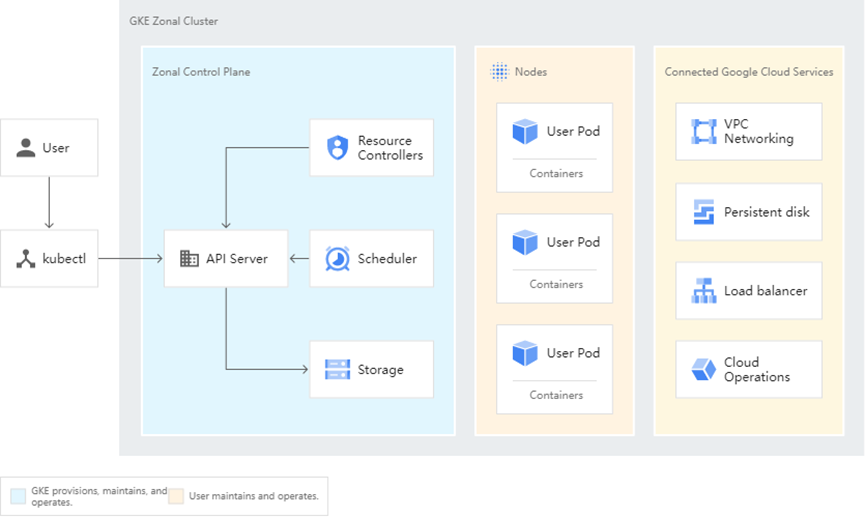
The standard cluster architecture diagram is as follows:
The blue part is managed by GKE for us. Users don’t need to pay attention to it. In the standard mode, users only need to manage node nodes and pods, that is, the content in the yellow part.
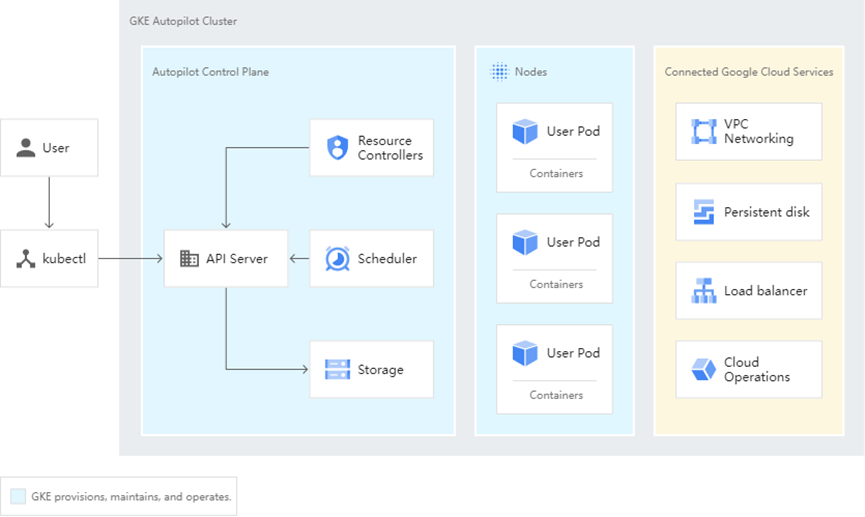
Autopilot mode
For clusters in AutoPilot mode, GKE manages the entire underlying infrastructure of the cluster, including the control plane, nodes, and all system components. Users only need to manage their own business pods.
【Concept Review】】
Before we use the GKE platform, let’s briefly review several concepts, which can help us get started with the GKE platform more quickly.
pod
A Pod is the smallest deployable computing unit that can be created and managed in Kubernetes. These containers share storage, network, and the declaration of how to run these containers.
Each Pod is assigned a separate IP address. All containers in a Pod share a network namespace.
- All containers in the same Pod have the same IP address.
- Different containers in the same Pod cannot use the same port, otherwise it will cause a port conflict.
- Different containers in the same Pod can communicate via localhost:port.
deployment
Deployment (short for deploy) is the most commonly used way to deploy stateless services. The Deployment controller enables you to update Pods (container groups) and ReplicaSets (replication sets) in a declarative manner.
ReplicaSet
The purpose of a ReplicaSet (abbreviated as rs) is to maintain a stable set of Pod replicas that are running at any given time. Therefore, it is typically used to ensure the availability of a given number of identical Pods.
service
A service is a collection of pods with the same functionality.
In Kubernetes, Pods can die at any time (due to node failures, application errors within containers, etc.). If you run your application using a Deployment, the Deployment will create a new Pod after a Pod dies to maintain the required number of replicas. Each Pod has its own IP address. However, for a Deployment, the set of corresponding Pods is dynamically changing.
This phenomenon has led to the following problems:
- If some Pods provide interfaces for other Pods, and the set of Pods is constantly changing (along with the IP addresses), how can the Pods that call the interfaces know which IP address they should send the requests to?
The significance of the existence of the Service is to solve this problem.
ingress
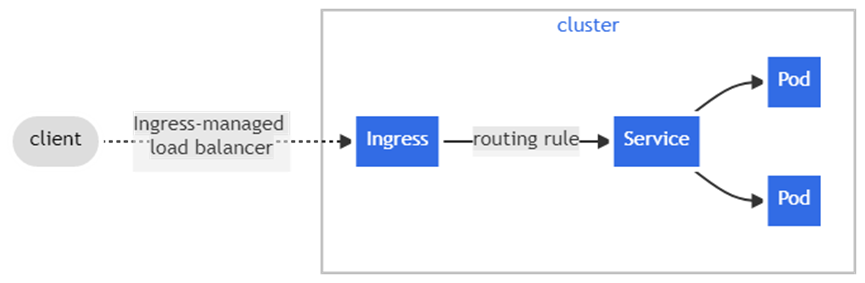
Ingress can provide external accessible URLs, load – balance traffic, terminate SSL/TLS, and enable name – based virtual hosting for Services. Ingress controllers are typically responsible for implementing Ingress through a load balancer, although they can also configure edge routers or other front – ends to assist with handling traffic.
Ingress does not expose arbitrary ports or protocols. When exposing services other than HTTP and HTTPS to the Internet, Services of type Service.Type=NodePort or Service.Type=LoadBalancer are typically used.
The following is a simple Ingress example that sends all traffic to the same Service:
【Create Cluster】】
Here we will start to introduce to you how to create a GKE cluster.
Preparatory work
- Create a VPC
Create the VPC of the location in advance. The process will not be elaborated.
Create a cluster
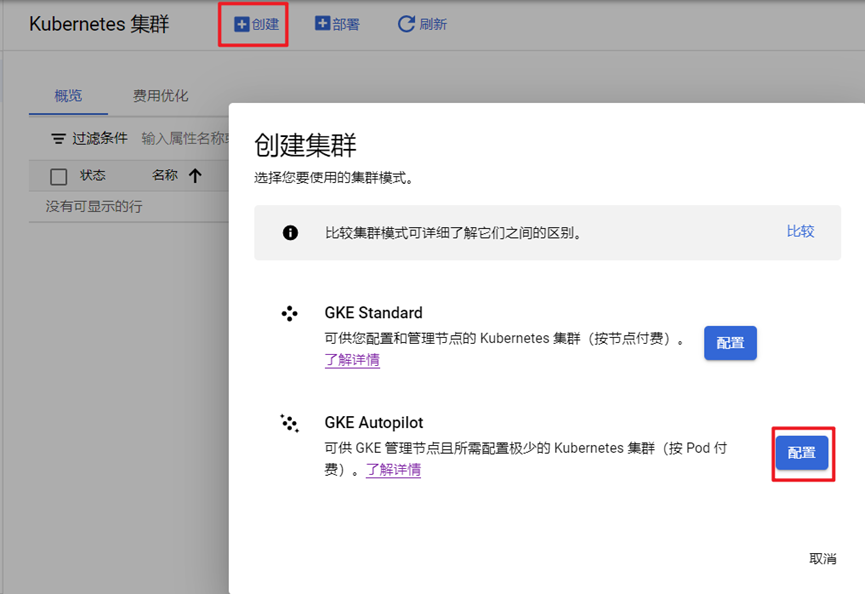
- Enter the Kubernetes Engine console, click [Create] – [Select GKE Autopilot] – [Configure]. As shown in the figure below:
- Configure cluster information
【Name】—first-gke
[Region]—asia-east2
[Network Access] — Public Cluster
【Network】—gke-hk-vpc1
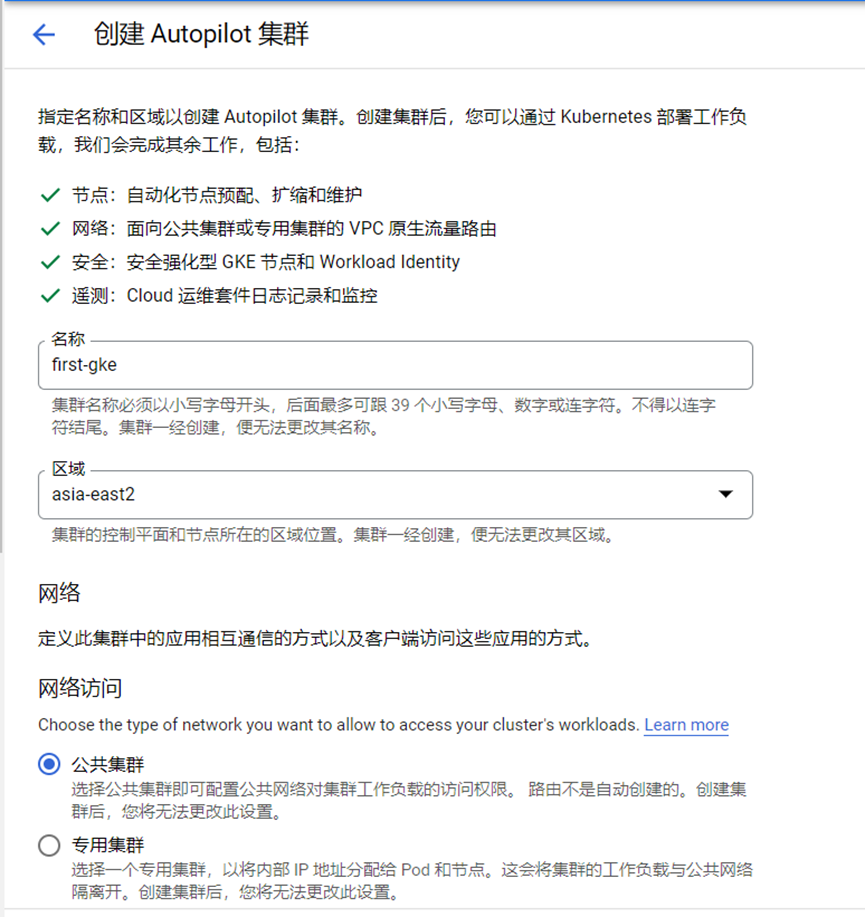
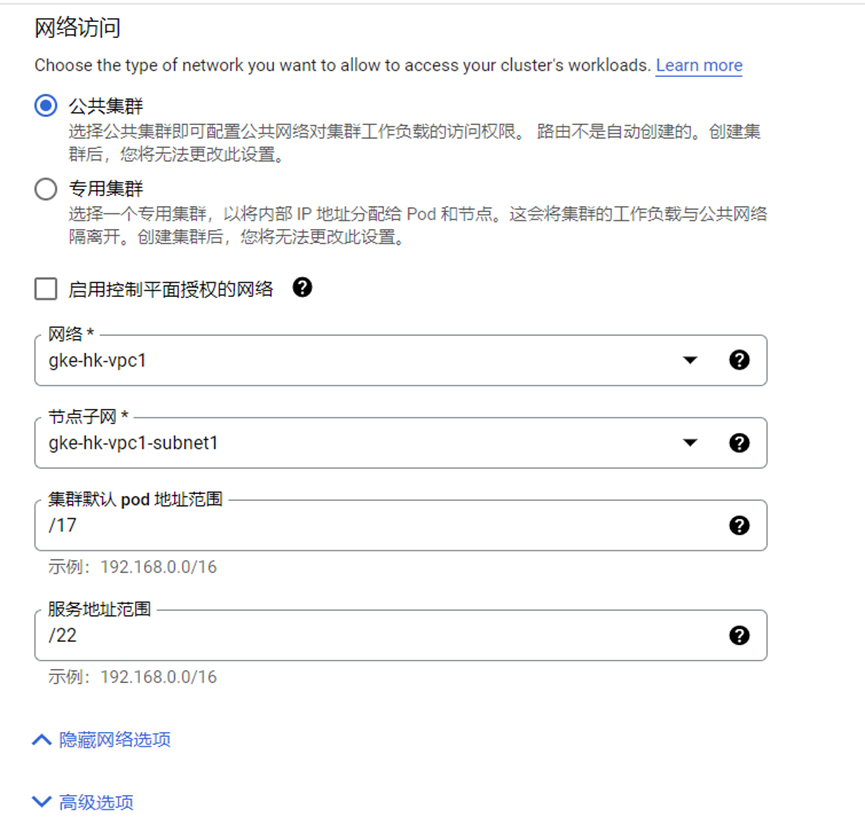
Configure as shown in the figure above, and finally click “Create”. The creation of the entire cluster will take approximately 5 – 7 minutes. When such an interface appears, our cluster has been successfully created.

【Deployment】
Click on [Workload] — [Deployment]
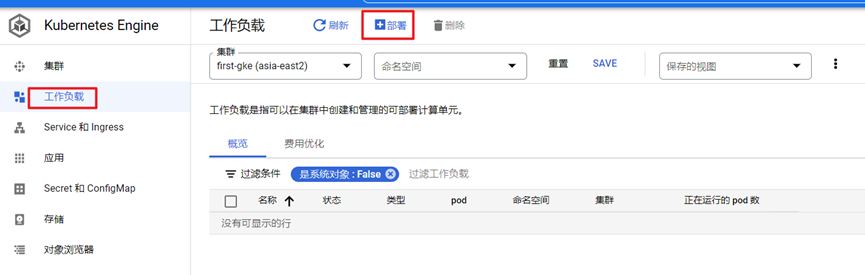
Select the default [nginx image] and click [Finish]
[Application Name]—nginx-1
【Namespace】—demo
【Cluster】 —first-gke
Finally, click [Deploy]
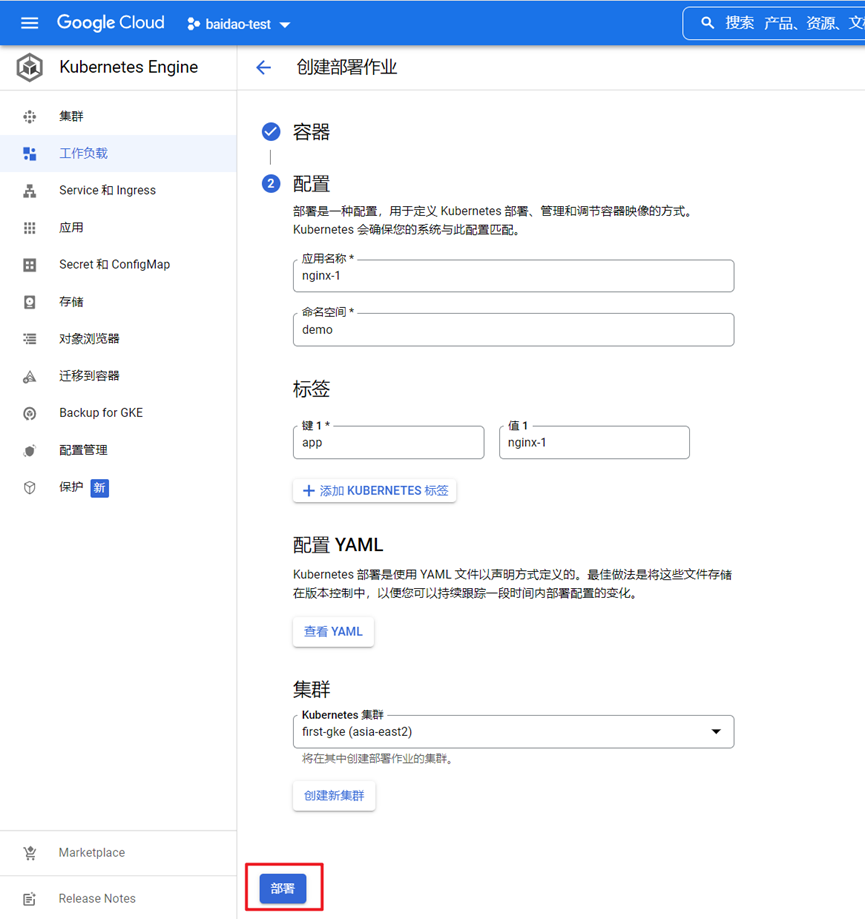
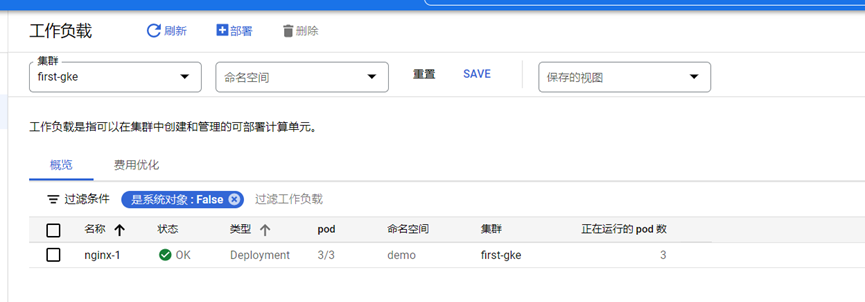
It will only take a few minutes to complete the deployment. As shown in the figure below:
【Create service】
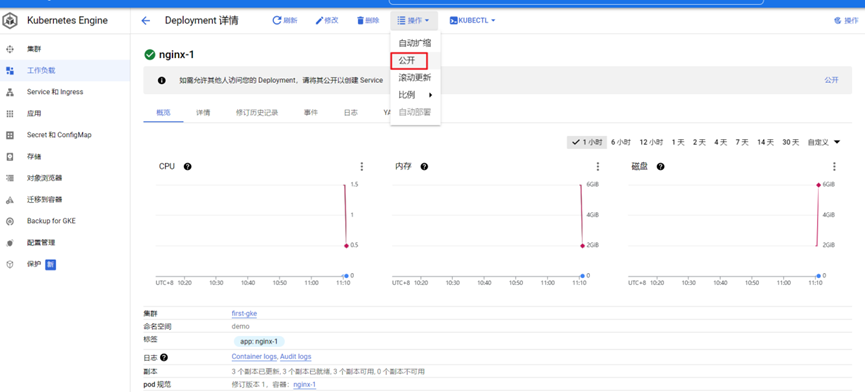
Click on 【Operation】—【Make Public】
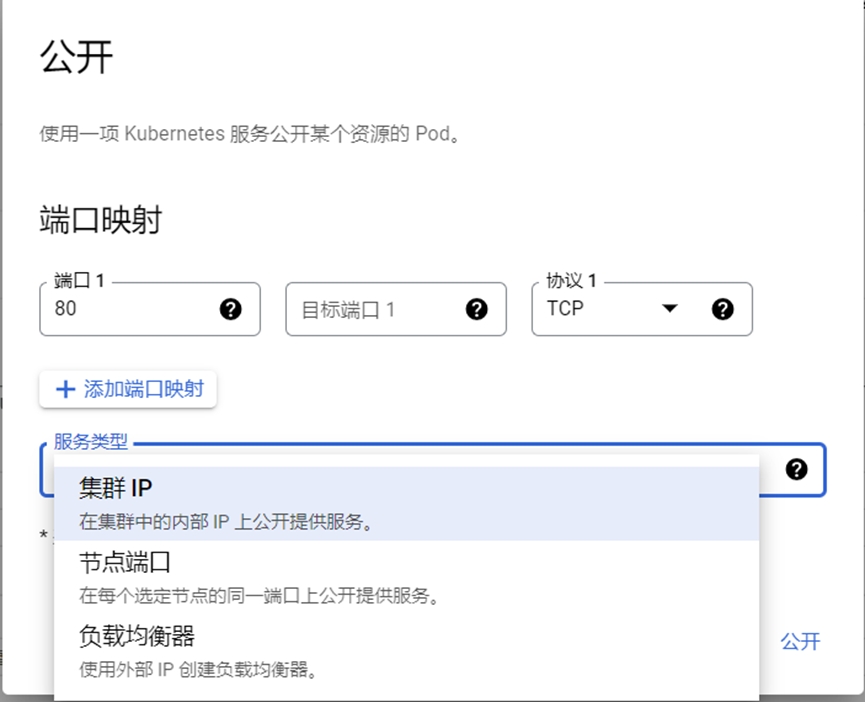
Port mapping
Port 1: The port mapped out
Target Port 1: The port of the container service. If the container port is the same as the mapped port, we don’t need to fill it in here. Since we are using the nginx image, which runs on port 80, there is no need to fill it in here.
Service public type
-Cluster IP
-NodePort
-LoadBlancer—The default service type in GKE
Here we select [Node Port], and click [Expose] to create a service. The newly created service is as shown in the following figure:
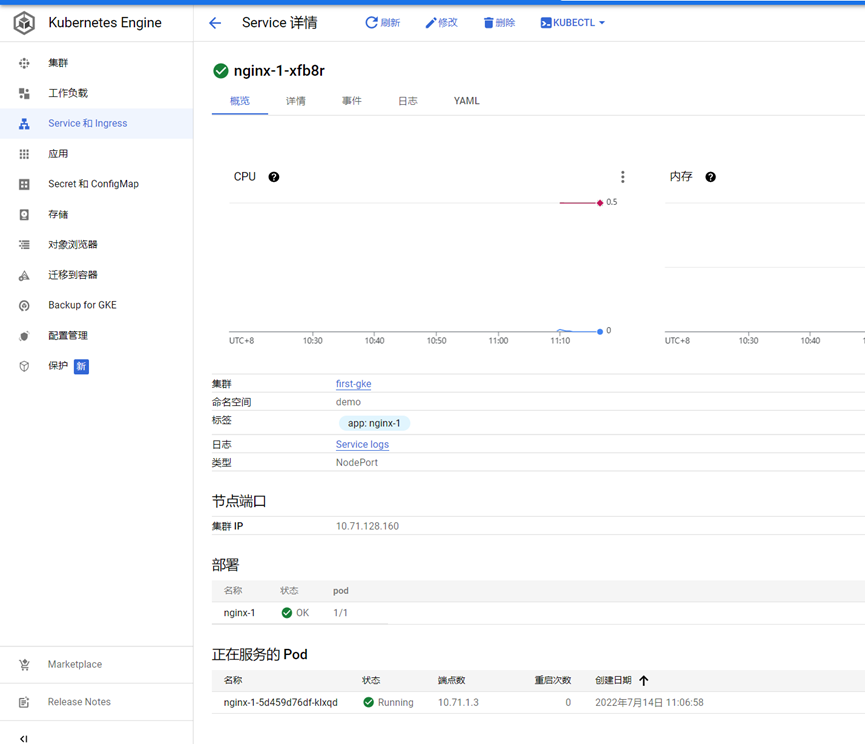
Now that the service is created, we still can’t access the deployed container. We need to create an ingress first.
Create ingress
Click [Service and Ingress], select the created service, and click [Create INGRESS].
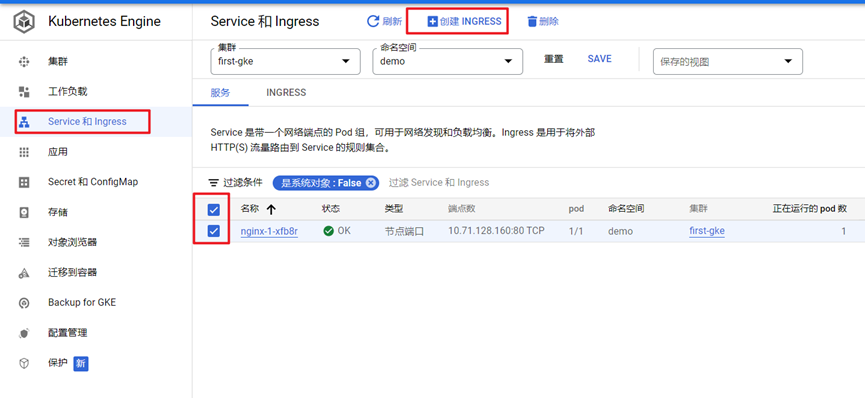
Configure the ingress as shown in the figure below
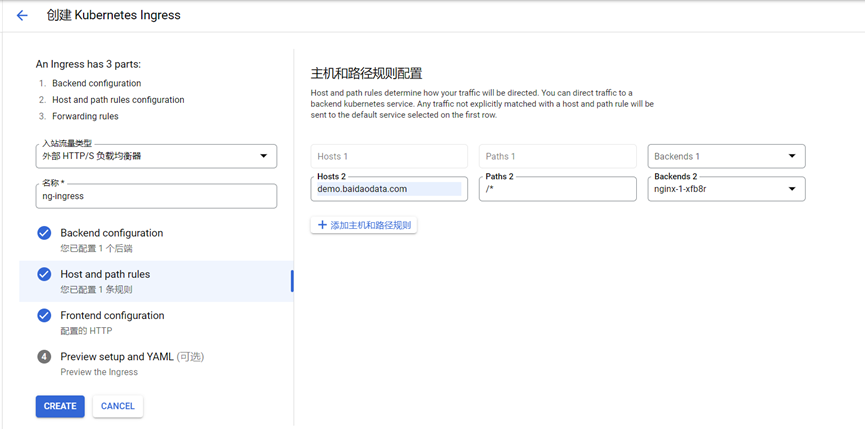
In the 【Host and path rules】, fill in our domain name 【demo.baidaodata.com】, fill in 【/*】 for path2, and select the service name 【nginx-1-xfb8r】 we created for Backends2. Finally, click 【CREATE】 and wait a moment for the successful creation.
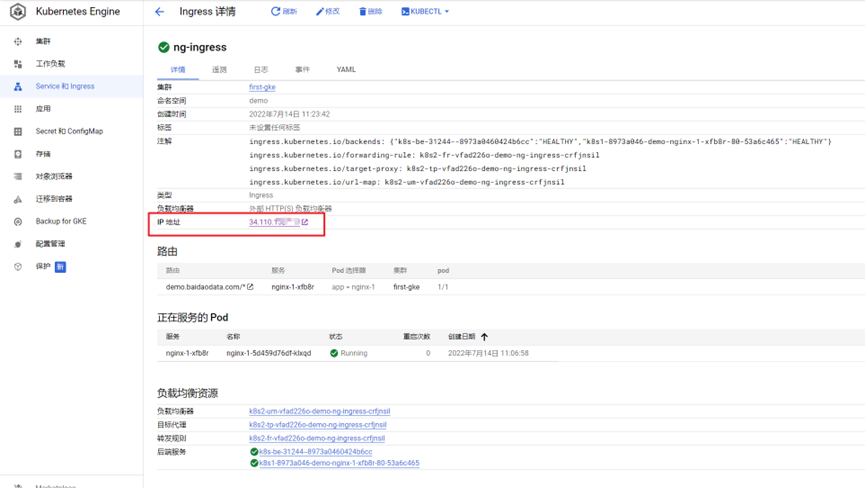
After successful creation, you can see an external network IP here. This IP is the external network IP of the ingress just created. We just need to resolve the configured domain name [demo.baidaodata.com] to this IP, and then we can access the deployed pod.
【Test】
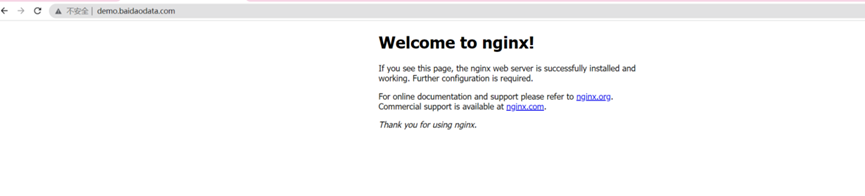
Enter the domain name [demo.baidaodata.com] in the browser, and the accessed page is as follows
【Conclusion】
GKE provides us with a ready-to-use k8s platform. This allows us not to focus on deployment and maintenance. It enables users to be more focused on the business itself rather than maintenance. The two maintenance modes enable